Audits
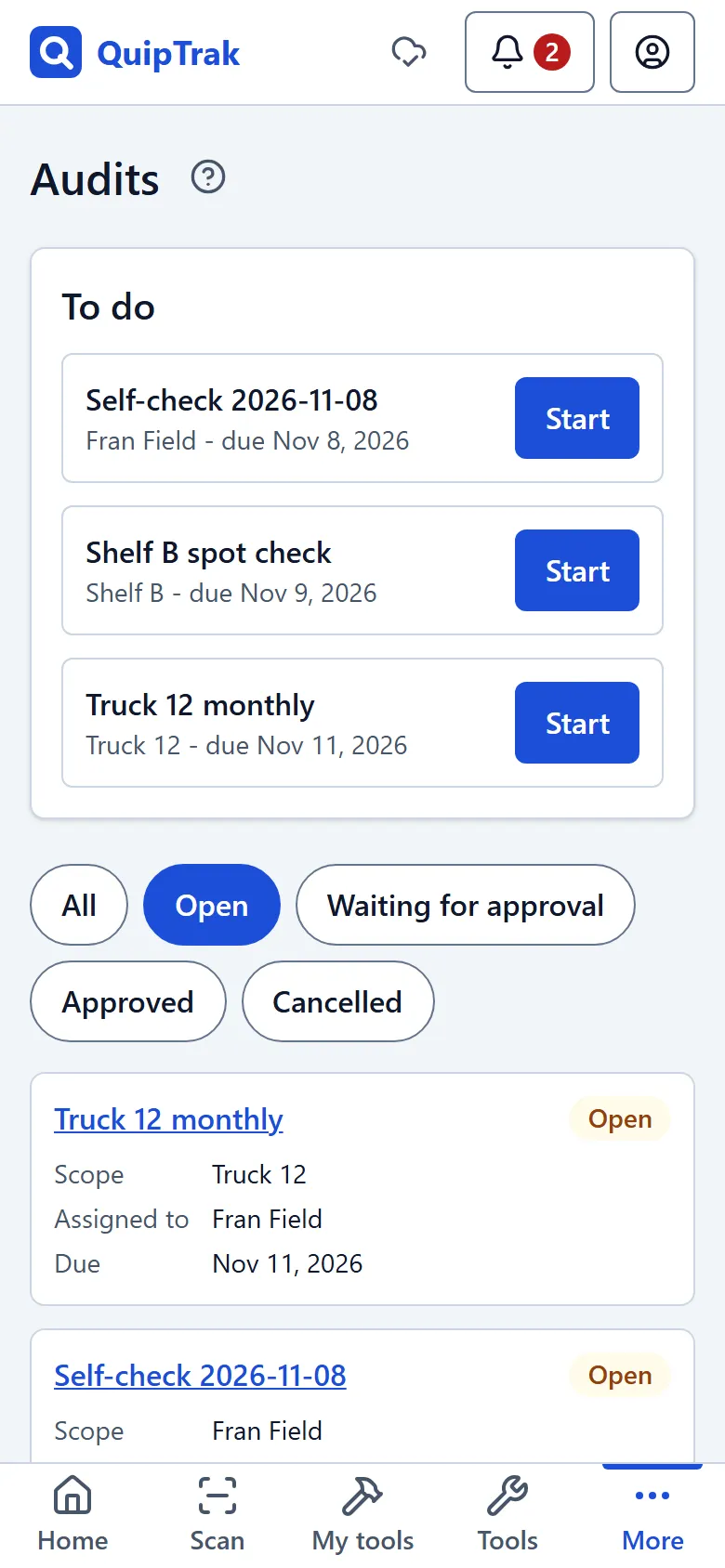
An audit checks what you really have against what QuipTrak expects. The person assigned counts on their phone. Owners and admins then approve the results.
Audits need the Crew plan or higher.
Who can do this: Staff plan audits. The person assigned counts, or staff count. Owners and admins approve.
Set up an audit plan
Section titled “Set up an audit plan”Audit plans repeat an audit on a schedule.
- On the Audits page, open audit plans and select New plan.
- Set the scope, then choose Assigned to.
- Set Repeats to Once or Every N days.
- Enter the First due date.
The person you assign must be able to run audits. Select Run now to start an audit from the plan straight away. Select Archive to stop new audits from the plan.
Each plan can have one open audit at a time. If the last audit is still open when the next one is due, it is marked overdue.
Start a one-off audit
Section titled “Start a one-off audit”- On the Audits page, select New audit.
- Under What to audit, choose Holder, Location or Item type.
The person assigned must be able to run audits.
Self checks
Section titled “Self checks”The setting Self-check every (days) in Settings > Company gives everyone who holds tools a self-check on that schedule. Leave it blank to turn self-checks off.
Count on your phone
Section titled “Count on your phone”- Tap Start. If you have already started, tap Continue.
- Scan every tool and bin you find. If a scan is not possible, tick the tool by hand. Count the stock.
- When you are done, tap Submit audit.
You may see these messages:
- “… is not expected here.”
- “… was already scanned.”
- “… is not part of this audit.”
- “Not found: {code}.”
Tap Discard run to clear the scans on this phone. If you submit while tools are not scanned, you see “Submit with tools missing?”. Only the first submission counts.
A setting in Settings > Company can turn on blind counts, which hide the expected quantities from the person counting.
How QuipTrak decides each line
Section titled “How QuipTrak decides each line”QuipTrak checks each line against its own records:
- Not scanned is “Missing”.
- Scanned but not expected here is “Not expected here”.
- Moved after the audit began is “Moved”.
Approve an audit
Section titled “Approve an audit”Owners and admins approve. Go through the lines:
- For each count, choose Approve (it shows “Adjust by …”) or Reject.
- For each unexpected tool, choose Move here or Leave.
- For each missing tool, choose Mark lost or Leave.
The setting When an approved audit finds a tool missing in Settings > Company decides whether a missing tool waits for owners and admins or is marked lost on approval. Every count and unexpected tool needs a choice before you can save.
Select Save decisions, then select Approve audit. Corrections show in the history as “Audit: {name}”.
Decisions are final. An approved audit can’t be cancelled. You can select Cancel audit while an audit is open or submitted.