Consumables
Consumables are items you use up or count, such as screws, glue and fuel. QuipTrak keeps a count of each one for every location and every person.
Stock is part of every plan.
Who can do this: Staff receive, transfer, correct counts and set limits. Field users take stock for themselves and return it.
Set up a consumable
Section titled “Set up a consumable”- On the Item types page (under Setup in the menu), select Add item type and choose the kind Consumables (counted).
- Enter the unit, the pack size and the default unit cost.
- Enter the default minimum and maximum.
The kind can’t change once there are tools or stock. Consumables can also go in kits. See kits.
Add a bin
Section titled “Add a bin”Bins are named places for stock inside a location. On the Bins page, staff select Add bin. Each bin name must be unique within its location.
Receive stock
Section titled “Receive stock”Staff can receive stock from the Stock page or from the keypad.
- On the Stock page, open the row action Receive for the item.
- Select Receive.
The unit cost starts at the item’s default cost.
Use stock
Section titled “Use stock”Scan a bin or item label to open the keypad.
- Select Issue to me to take stock for yourself.
- Select Return from me to put it back.
Field users can only issue to and return from themselves.
Move stock to someone else
Section titled “Move stock to someone else”Staff only. Select Transfer. In Move to, choose where the stock goes.
Correct a count
Section titled “Correct a count”Staff only. Use this to fix a count that is wrong.
- Select Adjust.
- Enter a signed change. “Use a minus sign to take stock off, for example -3.”
- Enter a reason. The reason is required.
- Select Save correction.
Set minimum and maximum
Section titled “Set minimum and maximum”- Select Edit under Min and max.
- Enter the minimum and the maximum. The minimum can’t be above the maximum.
Stock is low when it is below the minimum. It is not low when it equals the minimum. Use the Low stock only filter to see low items. Low items show a Low badge.
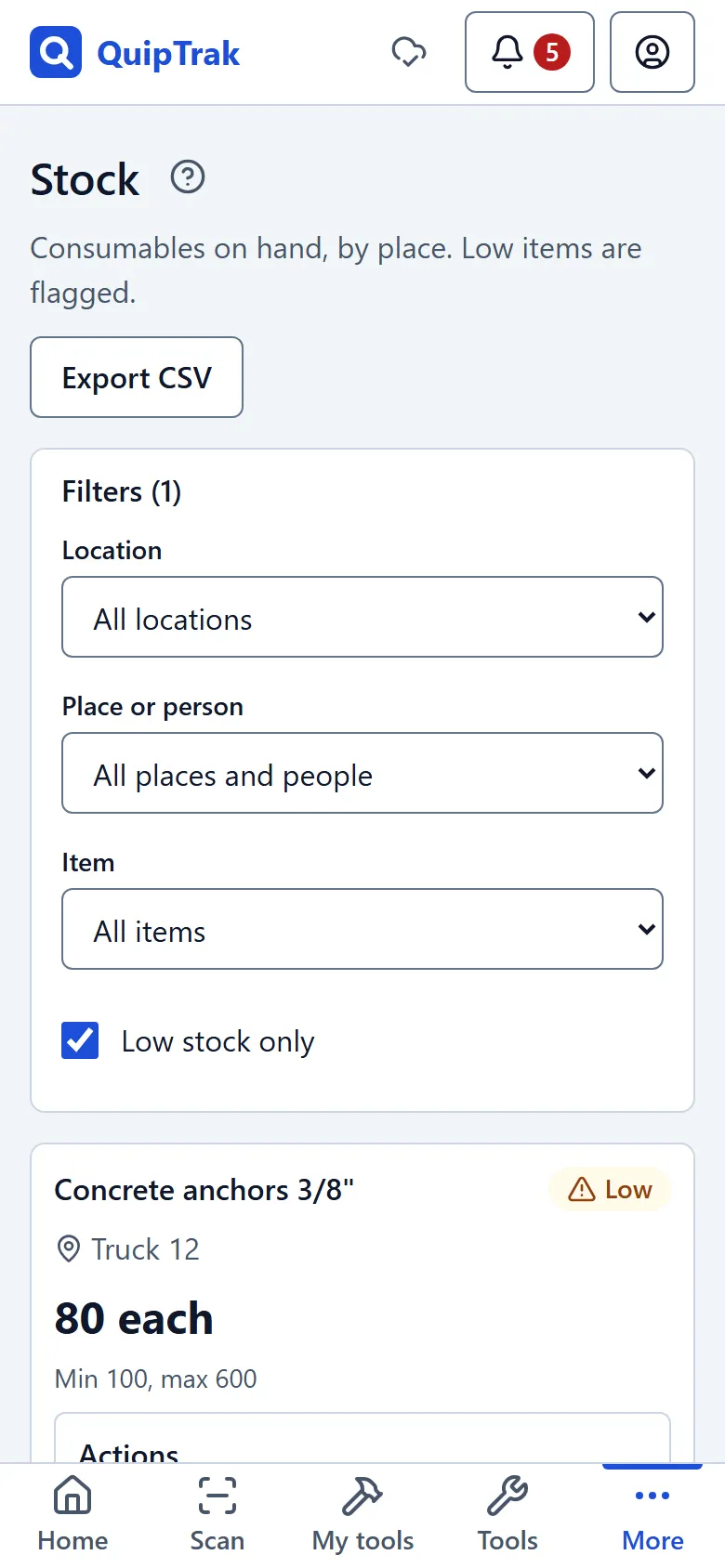
Get low stock alerts
Section titled “Get low stock alerts”QuipTrak sends an alert when a movement takes stock from the minimum or more down to below it. The message reads “{item} is low at {holder}: {n} left. Reorder {reorder}.” The reorder amount is the maximum minus what is on hand.
Alerts go to people ticked “Gets low-stock alerts” in Settings > People. If nobody is ticked, owners and admins get them.
The setting Low-stock emails in Settings > Company picks how often you get them:
- Instant sends in the next group of emails, about 15 minutes later. This is the default.
- Daily sends at 7:00 am company time.
Below zero
Section titled “Below zero”You can save stock below zero. QuipTrak warns you first with “You can still save it.” Rows show “Below zero”, and owners and admins are told.
Average cost
Section titled “Average cost”The average unit cost changes only when stock comes in, by receiving or returning it. Owners and admins see it as Average cost in the Stock value report. See reports.
Working offline
Section titled “Working offline”If you have no connection, your counts are saved on the phone. They show “Saved on this phone; will sync” and “(pending sync)” until they are sent. See offline for how this works.