Reports
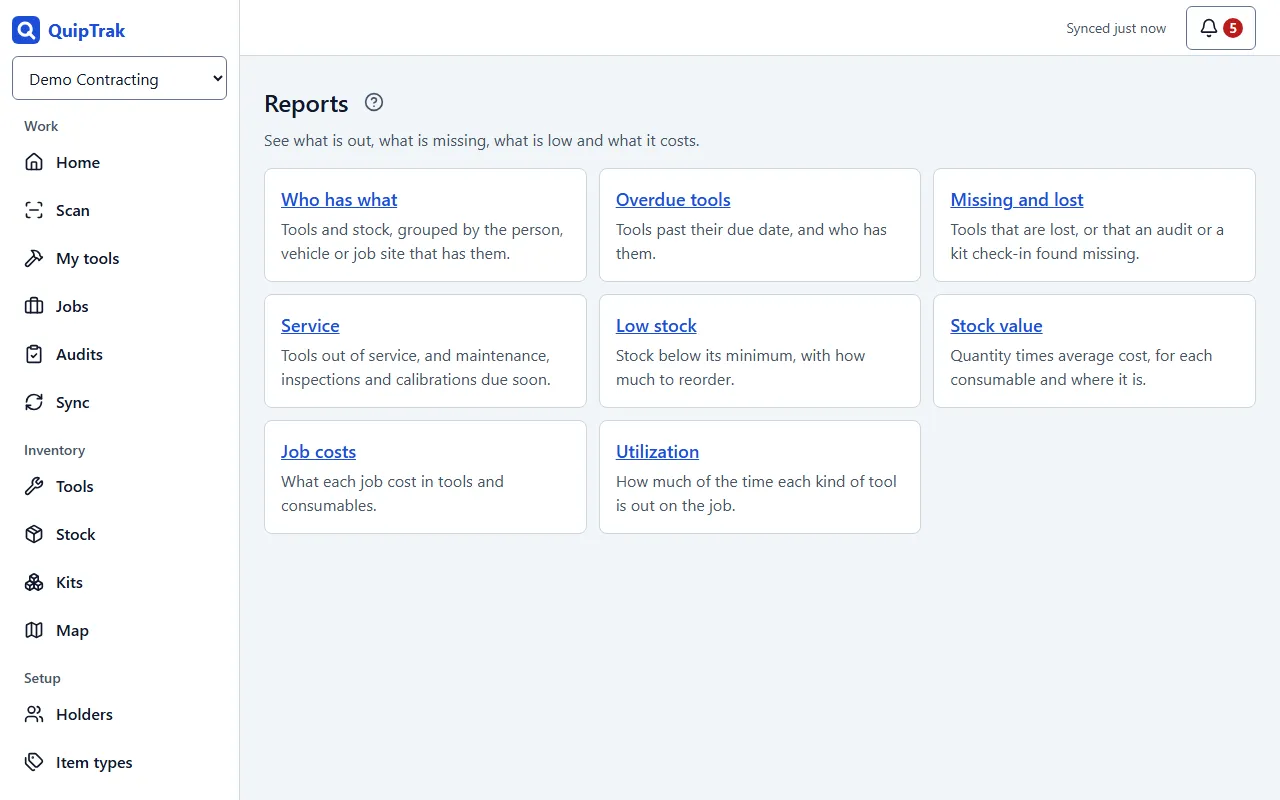
Reports show what is out, what is overdue, what is low and what jobs cost. Use them to see what needs attention.
Reports are part of every plan.
Who can do this: Owners, admins and attendants can see reports. Field users and viewers see “Only staff can see reports.” The money reports, Stock value and Job costs, are for owners and admins only.
Open a report
Section titled “Open a report”Open the Reports page and choose one of these:
- Who has what: tools and stock for each holder. Filter by holder type, holder and item type.
- Overdue tools: how many whole days each tool is overdue, in your company’s time zone. Filter by holder and item type.
- Missing and lost: tools that are lost, missing in an audit or missing from a kit.
- Service: tools that are out of service or due soon, and why. See maintenance.
- Low stock: stock below its minimum, with how much to reorder.
- Stock value: quantity times average cost. You can include bins.
- Job costs: tool and consumable cost for each job. Filter by status and dates. See jobs and costs.
- Utilization: days out and days in, for each tool or item type. Set From and To. Under How to count days, choose Exact time or Calendar days.
Filter a report
Section titled “Filter a report”Your filters are kept in the page address. If you refresh the page or bookmark it, the filters stay.
Export or print
Section titled “Export or print”- Click Export CSV to download the rows that match your filters.
- Click Print to print the report. The printout shows your company and your filters.
Some limits apply:
- A CSV can hold up to 50,000 rows. If yours is larger, narrow the filters and try again.
- The Job costs report covers up to 500 jobs.
- The Utilization report covers up to 732 days.
Reports need a connection to load.