Custody and hand-offs
Custody means who has a tool right now. QuipTrak records each check-out, check-in and hand-off, so you can see where a tool is and who has it.
Who can do what:
| Action | Who can do it |
|---|---|
| Check out to me, Check in, Give to…, Take it | Everyone except viewers. For Check in, the holder or staff. |
| Check out to…, Transfer to…, Change status | Staff (owners, admins and attendants) |
Check out a tool
Section titled “Check out a tool”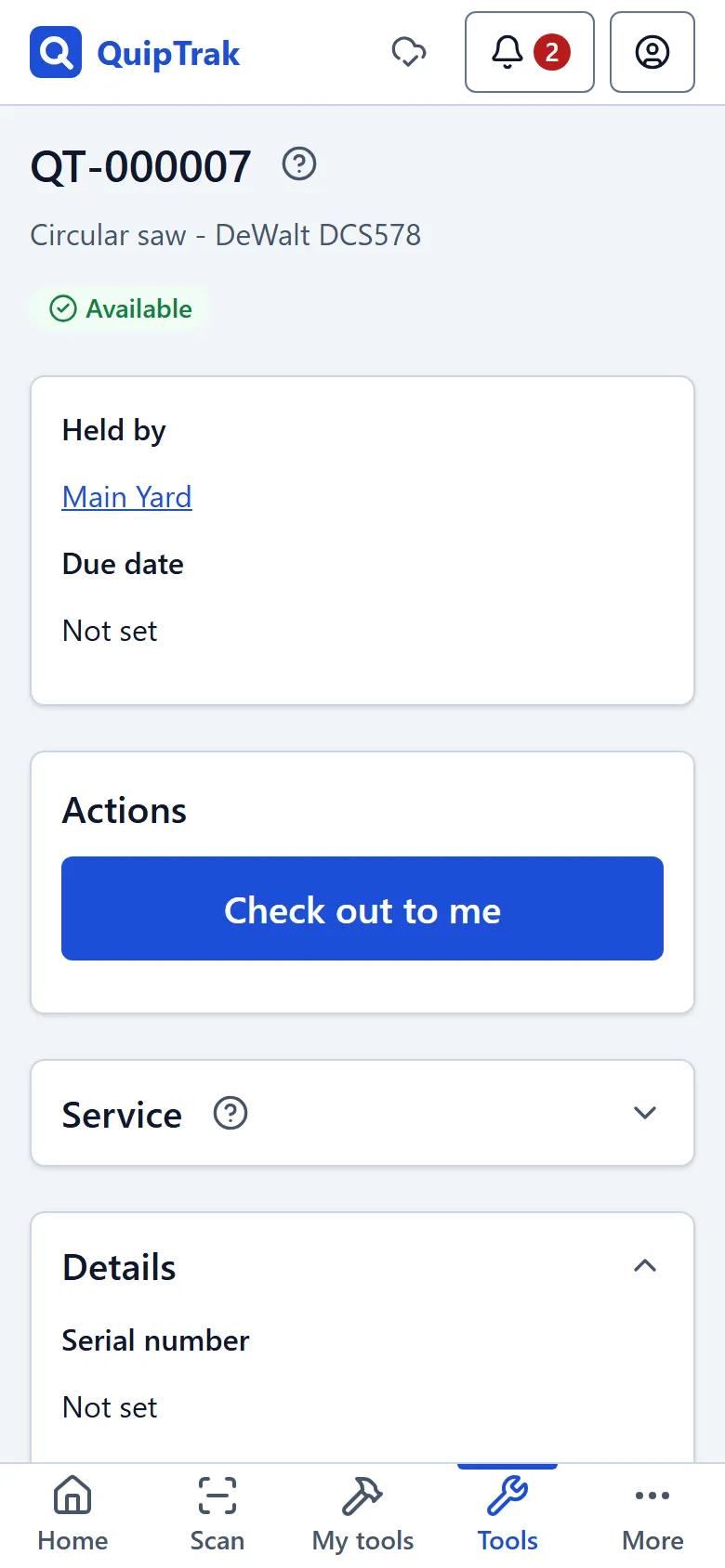
To check a tool out to yourself:
- Open the tool from a scan or from the tools list.
- In the Actions card, select Check out to me. This works when the tool is available.
Staff can check a tool out to someone else:
- In the Actions card, select Check out to….
- Choose a person, vehicle, job site or other holder. You cannot choose a location.
- If you need to, pick a job and enter a Due date (optional).
Check in a tool
Section titled “Check in a tool”- Select Check in.
- Choose a Location. QuipTrak remembers the last one you used.
My tools in the menu shows the tools you hold, each with Check in.
Give a tool to someone
Section titled “Give a tool to someone”Use a give when you want to pass a tool you hold to another team member.
- Select Give to… and choose the team member.
- They see “Waiting for you” and can accept or decline.
- To take back the offer, select Cancel the offer.
A tool can have only one give waiting. If one is already waiting, you see “This tool already has a give waiting.”
Owners and admins can turn on Gives move at once (no acceptance needed) in Settings > Company. Then a give moves the tool straight away.
Take a tool
Section titled “Take a tool”To take a tool that someone else holds, select Take it. QuipTrak asks “Take this tool?” Confirm it. The other person is told.
Transfer a tool
Section titled “Transfer a tool”Staff can move a tool to any holder. Select Transfer to… and choose the holder.
Change status
Section titled “Change status”Staff can change a tool’s status. Select Change status, then choose:
- In repair: moves the tool to a repair shop holder.
- Lost
- Retired: you must add a note.
- Found, back from repair or restored
For tools that are out of service, see Maintenance.
Due dates
Section titled “Due dates”A due date is optional. It can be set when you check out or transfer a tool.
- A tool is due by the end of the day you pick. The date must be within the next year.
- A tool past its due date shows Overdue and its due date.
- The holder gets a reminder. Owners and admins also get one if Also email owners and admins about overdue tools is on in Settings > Company.
- Taking, accepting and checking in a tool clear its due date.
Holders
Section titled “Holders”A holder is who or where a tool is. Each team member, each location and each bin is a holder automatically.
Staff can add other holders on the Holders page with Add holder. The types are Person (no login), Vehicle, Trailer, Job site, Tool crib, Subcontractor, Repair shop and Warehouse. Add locations on the Locations page with Add location.
Messages
Section titled “Messages”You may see these messages:
- “You don’t have permission to do that.”
- “This tool isn’t available for that. Refresh and try again.”
- “The tool is already there.”
- “That person or place can’t be used for this action.”
- “That job is closed. Choose an open job.”
History and notifications
Section titled “History and notifications”The History card on the tool page lists what happened, in plain sentences. For example: “Sam checked this tool out to Truck 1.” Edits, labels and photos are listed too. Flagged and late entries are marked. History needs a connection.
The Notifications page (the bell in the header) lists give offers, takes and overdue tools. You get an email only for a notification that is still unread after 15 minutes. You get at most one such email an hour.
Offline changes are covered in Offline use.