Scanning (phone and PDA)
Scanning is the quickest way to check a tool out, check it in or look it up on site. Scan the label and QuipTrak shows the tool and what you can do with it.
Who can do this: everyone can scan and look up tools. Viewers can look up codes but cannot act on them. Field users can report a code that QuipTrak does not know. Staff can act on those codes.
Scan with your phone
Section titled “Scan with your phone”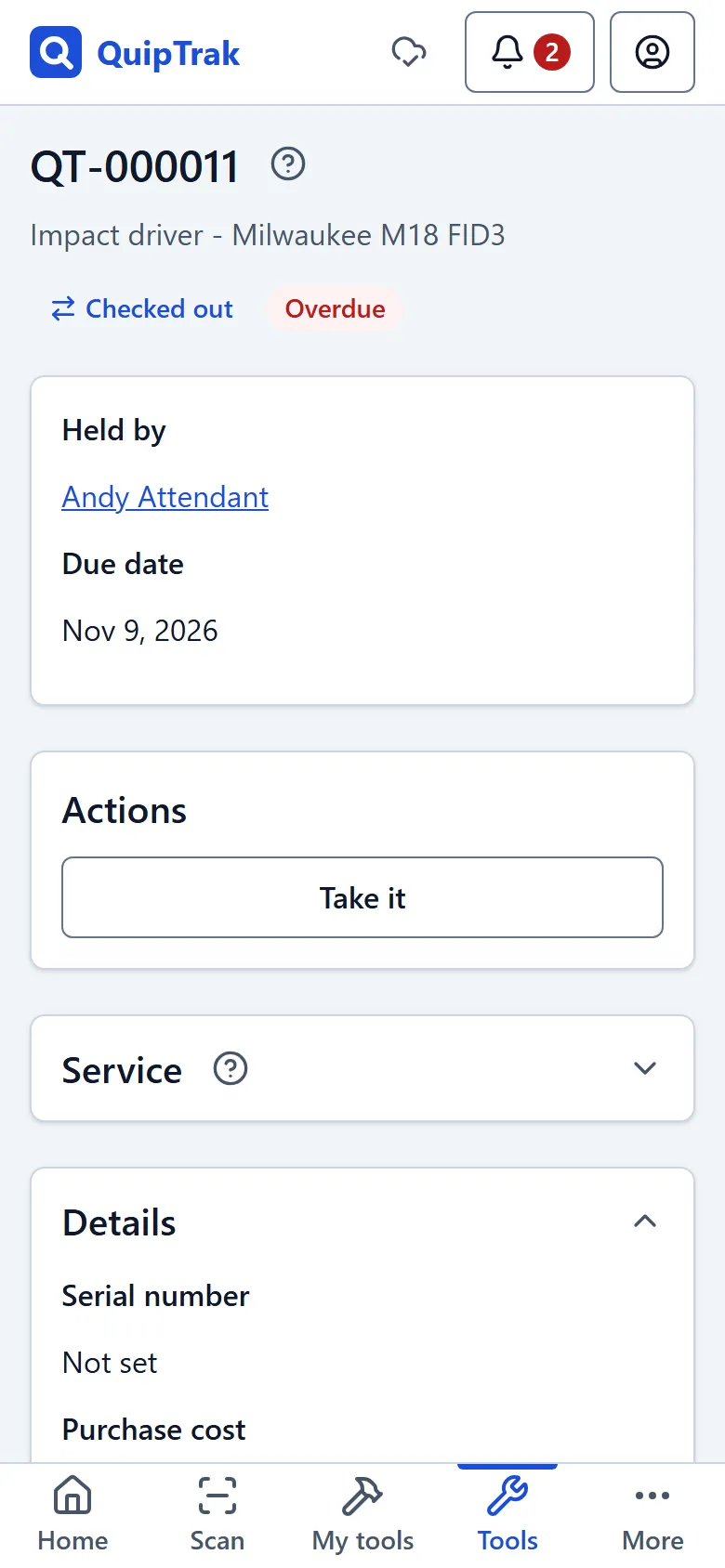
- Select Scan in the menu, or select Scan a tool on Home.
- Point the camera at the label. Your phone vibrates when it reads a code.
- The same code is ignored for a couple of seconds.
- In a dark place, select Torch.
The camera reads QR, Data Matrix, Code 128, Code 39, EAN-13, EAN-8, UPC-A and UPC-E codes.
If the camera is blocked, you see: “Allow the camera for this site in your browser settings, or type the code below instead.” Change the setting, then select Try the camera again. You can also type the code.
Scan with a handheld scanner
Section titled “Scan with a handheld scanner”A handheld scanner (PDA) or a scanner that types like a keyboard works on the Scan page. Keep the Scan page open and scan. Do not scan while you are typing in a text box.
You can also type a code in Type or scan a code and select Look up.
Scan modes
Section titled “Scan modes”The Scan page has two modes:
- One tool is the default. It shows the tool with its actions. Select Open tool to see the full tool page, or Scan next to scan the next code. A kit shows kit actions. A bin or consumable label opens the stock keypad.
- Several tools builds a list. Each tool appears once. Select Clear list to empty the list. Clearing the list does not change any tools.
Unknown codes
Section titled “Unknown codes”A code is unknown when QuipTrak does not have a tool for it.
- Staff see Bind to an existing tool and Add a new tool.
- Field users see Report this code. You can add a note, which is optional. QuipTrak then says: “Reported. Hand the tool to the office so they can add it.”
- Viewers are told to ask the office.
Staff see reported codes on the Unknown codes page (under Review in the menu). Select Put on a tool or Dismiss.
Location
Section titled “Location”On your first scan, QuipTrak asks “Save where you are?” Select Allow or Not now.
If you select Allow:
- Your phone’s position is taken once, at the moment you scan.
- It is saved only with an action you take. These are check-outs, check-ins and other moves, and unknown-code reports.
- It is never taken in the background or on a timer.
If you select Not now, your location is not saved. Scanning and looking up a tool never saves your location on its own.
To turn location off, go to Settings > My account and turn off Save my location with actions.
Only staff can see locations. A saved location shows in the tool’s history, with its accuracy as “±N m”.
Related
Section titled “Related”- Custody and hand-offs explains check-outs, check-ins and gives.
- Offline use explains how scans and actions work without signal.