Offline use
Crews often work where there is no signal. Your phone keeps a copy of your locations, holders, tools and labels, so you can keep working. Actions you take without signal are saved on the phone. They go out once you are back online and QuipTrak is open.
When the copy updates
Section titled “When the copy updates”Your phone updates its copy when you:
- open the app
- come back to it
- get a connection back
While QuipTrak is open, it also updates every 3 minutes.
What works offline
Section titled “What works offline”You can do these without signal:
- scan and look up tools
- check out, check in, transfer, take and give tools
- change a tool’s status
- do kit and stock actions
- send unknown-code reports and damage reports
When you save an action offline, you see “Saved on this phone. It will sync when you are back online.” The tool shows its new state straight away.
What needs a connection
Section titled “What needs a connection”These need a connection:
- adding tools
- attaching codes
- printing labels
- Home counts, which show “Counts need a connection.”
- reports and CSV exports
- notification settings
- tool history, notifications and photos
See what is waiting
Section titled “See what is waiting”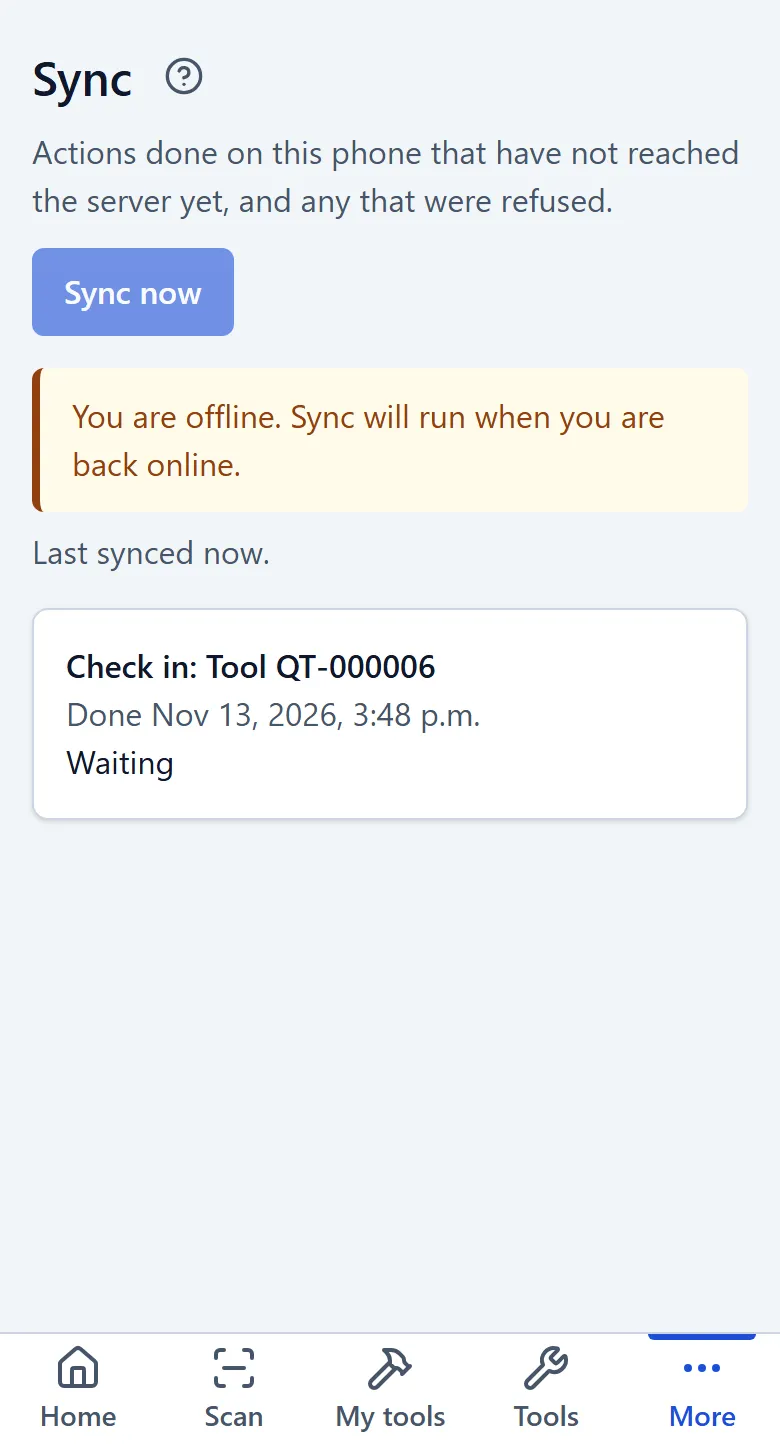
The badge in the header shows the state of your saved actions. It can say:
- “N actions waiting to sync”
- “Syncing…”
- “Synced N min ago”
- “N actions failed”
Tap the badge, or select Sync in the menu, to open the Sync page. It lists Actions on this phone. Each one is marked Waiting or Failed. To send them now, select Sync now. This needs a connection.
Failed actions
Section titled “Failed actions”Some actions are refused when they arrive. For example, a field user’s offline transfer may be refused. A refused action is marked Failed on the Sync page, with the reason.
To remove one, select Discard. QuipTrak asks “Discard this action?” before it removes the action.
When two phones disagree
Section titled “When two phones disagree”- The action with the later time wins.
- A late action is kept in the tool’s history as “Not applied (arrived late)”. The tool does not move back.
- A move that should not have been possible is saved and marked Flagged. For example, checking in a tool that the person did not hold. Owners and admins review flagged moves on the Anomalies page (under Review in the menu). They select Accept as is or Correct custody.
- If a phone’s clock was wrong, QuipTrak corrects the time and flags the action.
See Custody and hand-offs for how check-outs and gives work.
Lost phone
Section titled “Lost phone”If you lose a phone, go to Settings > My account > Devices and select Revoke next to it. This signs that person out everywhere.